
WP Vacation Post
WP Urlaubszeiten – Publish Vacation Notices Once, Display Them Automatically.
WP Urlaubszeiten – Publish Vacation Notices Once, Display Them Automatically
A lightweight WordPress plugin that lets you publish vacation periods as a notice on your website, automatically hide them again when the period ends, and — if needed — send the same post to your social channels via social-media auto-post plugins.
Why use a vacation notice plugin at all?
Vacation periods are one of those classic operational details: you want to inform visitors clearly, so they do not need to call or send emails just to hear “we’re on vacation,” but you also do not want a workflow that forces you to manually update everything again at the start and end of every absence.
We built WP Urlaubszeiten because that was exactly the requirement we had ourselves:
- Publish a vacation notice on the website once, so it appears in the frontend.
- Let a social-media auto-post plugin pick up the same content immediately and publish it to Facebook, Instagram, LinkedIn, and similar channels, depending on the setup. These plugins are built specifically to automate the sharing or scheduling of WordPress content.
- Make sure the notice disappears automatically once the vacation period is over, without anyone having to remember it.
WordPress can schedule posts for publication, but taking content offline automatically is often a separate issue in day-to-day use and is commonly handled with additional logic or dedicated plugins. Examples include tools that support scheduled changes all the way through to unpublishing content.
WP Urlaubszeiten focuses precisely on this “vacation use case”: fast, clear, and reliable.
What does WP Urlaubszeiten actually do?
With the plugin, you manage vacation periods like small announcement posts, including the time range (start/end date) and the notice text.
Typical outcomes:
- Frontend notice: visitors clearly see “We are on vacation from … to …”.
- Automatic end: after the end date, the notice is removed from the frontend automatically, for example no longer displayed or deactivated.
- Social-media compatibility: if you publish the vacation notice as a post, auto-post tools can detect and share it — this is how tools such as Jetpack Social or Blog2Social typically work when automatically sharing new content.
How it works in practice
1) Create a vacation period
You create a new vacation notice, define the date range, and write the notice text.
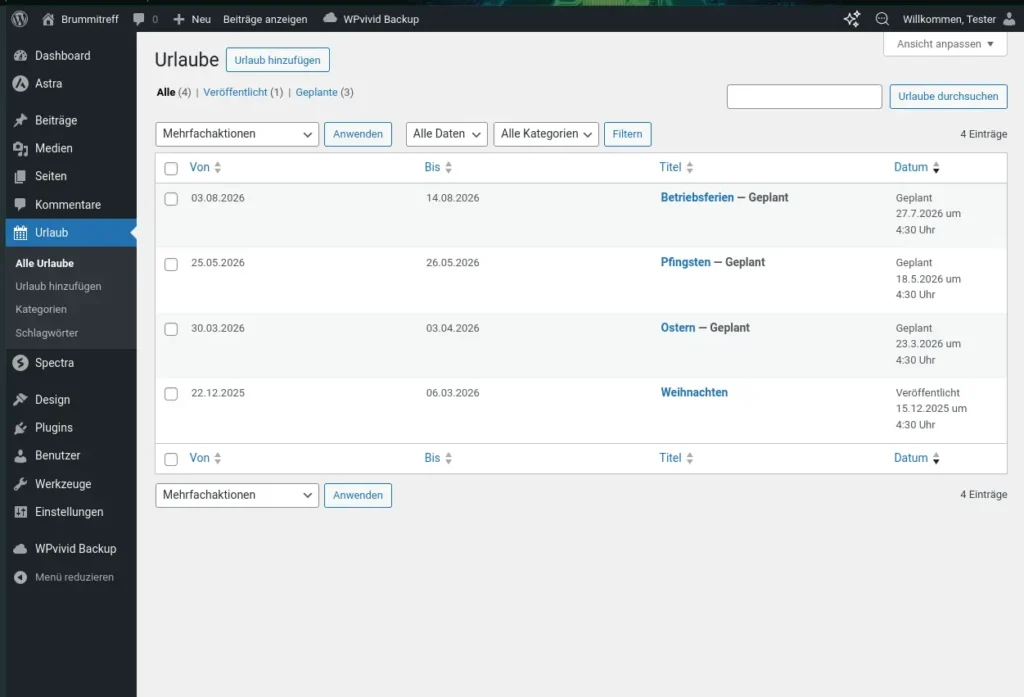
Screenshot: Backend Overview
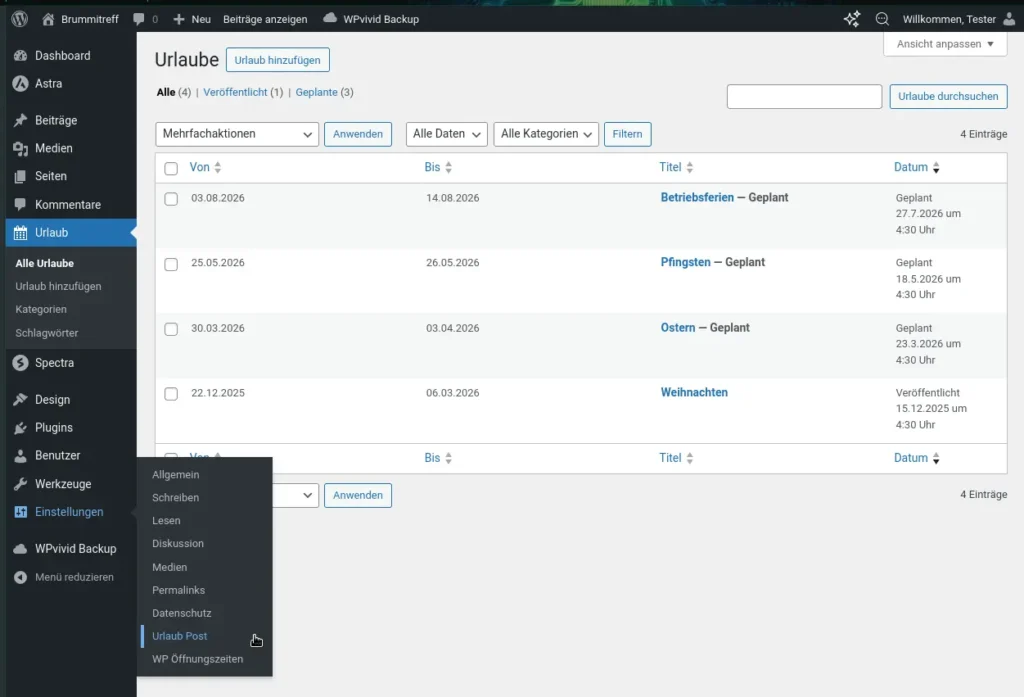
Screenshot: Add Vacation Period
Practical tip:
Write the message so that it works well both on the website and as a social post: short, clear, and optionally including a link to your contact page or FAQ.
2) Define the time range
The core element is the date range:
- Start date: from when should the notice become visible?
- End date: until when should it remain visible — and from when should it disappear automatically?
This saves you from the classic problem: “Oh no, the vacation ended days ago and the notice is still online.”
Technically, this is a familiar pattern in the WordPress ecosystem: content that changes or disappears automatically on a specific date. Many websites solve this with plugins for future actions or time-controlled visibility.
3) Display in the frontend
Depending on the theme and setup, the output can look different. Common options include:
- Notice bar / banner, for example at the top of the header area
- Info box on a page, such as the homepage or contact page
- Widget / block / shortcode, depending on how it has been implemented
Image placeholder (frontend):
[Screenshot: Frontend – Vacation Notice]
Recommendation from practical use:
Place the notice where visitors will actually see it — ideally at the top of the layout or prominently on the homepage and contact page.
Social-media posting: “Publish once, share everywhere”
The real productivity gain is this: you maintain the message once in WordPress, and a social-media auto-poster can automatically turn it into posts.
Examples of how these tools typically work:
- Jetpack Social: supports automatic sharing of new posts and, depending on the setup, also re-sharing and scheduling.
- Blog2Social: supports automated sharing and scheduling across many platforms.
- There are also other auto-posters and schedulers such as SchedulePress or FS Poster, all following the same basic principle: WordPress content becomes a social-media post.
Important, in realistic terms:
The plugin can automatically end the notice on your website. Social posts on the platforms themselves are not automatically “pulled back” — that depends on the social plugin and the network. In practice, this is usually handled in one of two ways:
- Either you publish a short “We are back” post at the end of the vacation period,
- or you simply let the original vacation post remain in the feed as a time-based update.
Settings: what you typically want to control
This is where you collect everything you may want to adjust quickly in day-to-day use — for example the display location, format, texts, and the behavior after the end date.
Image placeholder (settings):
[Screenshot: Settings]
Typical settings ideas as a structure for your plugin page:
- Enable / disable display
- Appearance: banner / box, position, optional CSS classes
- Scope: global, only on specific pages, only homepage, only contact page
- Behavior after end date: hide, deactivate, change status, depending on implementation
- Multiple vacation periods: which one is active, priority when dates overlap
Examples of vacation texts suitable for website and social posts
Simple and direct:
We are on vacation from [DATE] to [DATE]. From [DATE] onward, we will be available again as usual.
With expectation management:
Vacation time 🎒 We are only partially available from [DATE] to [DATE]. We will respond to enquiries as quickly as possible from [DATE].
With a CTA:
We are on vacation until [DATE]. In urgent cases, please use our contact form: [LINK].
Who is this plugin ideal for?
- Solo self-employed professionals, agencies, and freelancers
- Medical practices and law firms
- Local service providers such as trades, studios, and coaching businesses
- Smaller shops where the focus is on communication rather than a full WooCommerce vacation mode
FAQ
Can I store multiple vacation periods?
Yes — that makes sense, for example, for company holidays plus shorter individual breaks. The key point is how priorities and overlaps are handled.
What happens if I change the date range?
Typically, the display updates accordingly based on the revised start and end dates.
Does it work with caching, for example page cache?
It can — but if a cache freezes pages too aggressively, you may need cache rules so the site refreshes when the vacation status changes. That is usually less of a plugin issue and more a matter of deployment and cache strategy.
Which social plugins are compatible?
In principle, any plugin that automatically shares or schedules WordPress content when it is published, for example Jetpack Social, Blog2Social, and similar tools.
If you send me your actual field names and labels from the UI — menu items, button texts, and, if applicable, the shortcode or block name — I can adapt the text 1:1 to your real plugin implementation.
Download the WP Plugin Now
Would you like to test the right plugin right away or access additional materials? On our download page, you will find all available downloads along with the appropriate form for your request.
Request a Custom WP Plugin
Do you need a solution tailored precisely to your requirements? We would be happy to tell you more about the options for a custom WordPress plugin designed around your features, processes, and existing system.